Moneris Online Support

Get to know Wix and your Moneris Online account. Learn to set up your solution and more.

Quick Links

This section isn't available right now

We're aware of the problem and we're working on it. The rest of this page is working normally.

Quote this code if you contact us: MON-261120-K9WHZ8

Moneris Online All-in-one

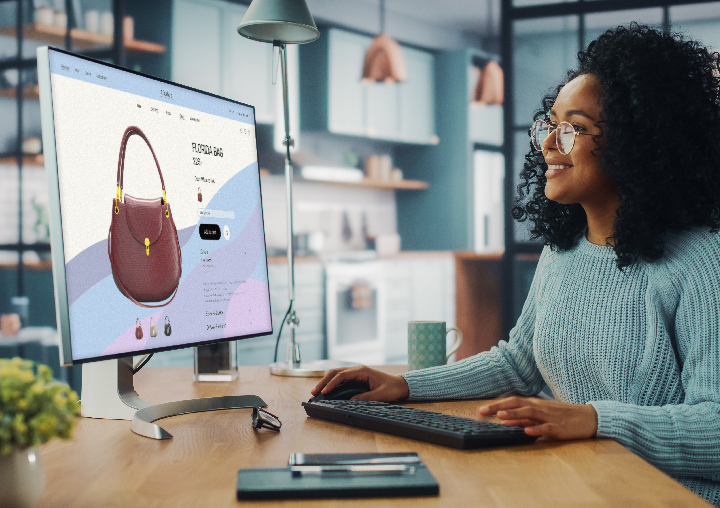
Laptop showing an example of an online store powered by Moneris Online ecommerce system, in this case a retail website created with Wix
Moneris Online (All-in-one)
I purchased an all-in-one solution through Moneris (website and payments).
Laptop showing an example of an online store powered by Moneris Online ecommerce system, in this case a retail website created with Wix
  • You will receive an invitation from the Moneris website creation team to meet with them online. They will guide you through the process of setting up your website including payment processing.  
  • The Moneris website creation team will guide you through the process of creating and designing your Wix website. Work with them to select a template and customize it for your business. 
    To learn about the options for designing and managing your website, visit the Wix help centre at support.wix.com. 
     
  • Depending on the Moneris Online package you choose, the following powerful fraud prevention tools are included:

    • Moneris Kount® gives merchants get ready-to-use fraud protection backed by our pre-configured Moneris rule-set. Moneris Checkout offers fully automated order decisioning on your behalf.
    • 3-D Secure provides real-time authentication of an online shopper to their card issuer through Visa® Secure and Mastercard Identity CheckTM.


    These fraud tools are pre-configured to work with Moneris Online. No additional setup on your part is required for either of these fraud prevention tools.

     
  • Follow these steps to perform a refund in Wix.

    1. On the Wix dashboard, click Orders. 
    2. Select the order you want to refund. 
    3. On the order details page, click Issue Refund. 
    4. On the Issue refund page, enter the total amount to be refunded. You can refund the full amount or a partial amount. 
    5. Select a reason for the refund (optional).
    6. Check the box next to “Send a confirmation email to customer”. 
    7. Click Continue to complete the refund. 


  • You can also perform refunds in the Go portal.  

    1. On the main menu, click Reports.
    2. Click on the transaction you want to refund. 
    3. Click Actions and select Refund. 

    For detailed instructions, refer to the Moneris Go portal reference guide or online help on the Moneris Go portal support page available at moneris.com/en/support/moneris-go/moneris-go-portal

     
  •  

    1. Go to monerisgo.com/login and click Sign up.
    2. At the Sign-up page, complete the required fields and click Sign up.
    3. You will receive a user account activation email. Follow the instructions in the email message.  


    For step by step instructions, refer to the Moneris Go portal reference guide or online help on the Moneris Go portal support page available at moneris.com/en/support/moneris-go/moneris-go-portal.

     
    1. On the Login page, click Forgot Password? 
    2. On the Password Reset page, enter your email address then click Reset. 
    3. The portal sends a message to your email address. In the message, click the link to reset your password.
     
  • Access transaction details and statements, manage accounts, handle chargebacks, check fees and more with Moneris’ merchant portal, Moneris Portal®. Click here to find out more and to access Moneris Portal. 
  • A chargeback is an adjustment to your merchant account based on a previous sales transaction. You can handle chargebacks in Moneris Portal. Click here to find out more.

Moneris Online Payments Only

Laptop showing an example of an online store powered by Moneris Online ecommerce system, in this case a spa website created with Wix
Moneris Online (Payments only)
I connected my existing Wix website to Moneris payments.
Laptop showing an example of an online store powered by Moneris Online ecommerce system, in this case a spa website created with Wix
  • Existing Wix customers can select Moneris for their payment processing.  Refer to this article on the Wix support page:  Connecting Moneris as a payment provider.

    You will need to enter two pieces of information in Wix: 

    • Store ID.  Your Moneris Store ID can be found in your welcome email from Moneris.
    • API token.  To obtain your API: token:
    1. Activate your account for the Moneris Merchant Resource Centre (MRC)
    2. Login to the MRC.
    3. On the menu bar, click Admin then Store settings. The token is located in the API token area. If you need any help with these steps, refer to the MRC User Manual on the MRC login page.
     
  • Follow these steps to perform a refund in Wix.

    1. On the Wix dashboard, click Orders. 
    2. Select the order you want to refund. 
    3. On the order details page, click Issue Refund. 
    4. On the Issue refund page, enter the total amount to be refunded. You can refund the full amount or a partial amount. 
    5. Select a reason for the refund (optional).
    6. Check the box next to “Send a confirmation email to customer”. 
    7. Click Continue to complete the refund. 


  • To learn how to perform a refund in the MRC, watch the Refund video on YouTube. 
  • Access transaction details and statements, manage accounts, handle chargebacks, check fees and more with Moneris’ merchant portal, Moneris Portal®. Click here to find out more and to access Moneris Portal. 
  • A chargeback is an adjustment to your merchant account based on a previous sales transaction. You can handle chargebacks in Moneris Portal. Click here to find out more.

Moneris Online Transfer

Laptop showing an example of an online store powered by Moneris Online ecommerce system, in this case a restaurant website created with Wix
Moneris Online (Transfer)
I migrated my Bookmark website to Wix.
Laptop showing an example of an online store powered by Moneris Online ecommerce system, in this case a restaurant website created with Wix
  • You will receive an invitation from the Moneris website creation team to meet with them online. They will guide you through the process of setting up your website including payment processing.  
  • The Moneris website creation team will guide you through the process of creating and designing your Wix website. Work with them to select a template and customize it for your business. 
    To learn about the options for designing and managing your website, visit the Wix help centre at support.wix.com. 
     
  • Depending on the Moneris Online package you choose, the following powerful fraud prevention tools are included:

    • Moneris Kount® gives merchants get ready-to-use fraud protection backed by our pre-configured Moneris rule-set. Moneris Checkout offers fully automated order decisioning on your behalf.
    • 3-D Secure provides real-time authentication of an online shopper to their card issuer through Visa® Secure and Mastercard Identity CheckTM.


    These fraud tools are pre-configured to work with Moneris Online. No additional setup on your part is required for either of these fraud prevention tools.

     
  • Follow these steps to perform a refund in Wix.

    1. On the Wix dashboard, click Orders. 
    2. Select the order you want to refund. 
    3. On the order details page, click Issue Refund. 
    4. On the Issue refund page, enter the total amount to be refunded. You can refund the full amount or a partial amount. 
    5. Select a reason for the refund (optional).
    6. Check the box next to “Send a confirmation email to customer”. 
    7. Click Continue to complete the refund. 


  • To learn how to perform a refund in the MRC, watch the Refund video on YouTube. 
  • Access transaction details and statements, manage accounts, handle chargebacks, check fees and more with Moneris’ merchant portal, Moneris Portal®. Click here to find out more and to access Moneris Portal. 
  • A chargeback is an adjustment to your merchant account based on a previous sales transaction. You can handle chargebacks in Moneris Portal. Click here to find out more.

Need Additional Help?

Talk to one of our business advisers for additional troubleshooting.