Quick links
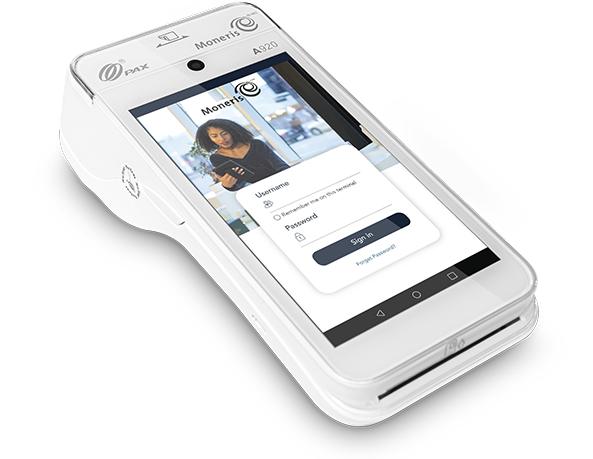
Quick links for your Moneris Go
Login to Moneris Portal
Setup help for your device
Moneris Go: Online User Manual
Browse or search comprehensive information about setting up, operating, and troubleshooting your terminal.
Setting up your Moneris Go
How to set up your Moneris Go terminal
So you’ve got Moneris Go, now what? This instructional video provides everything you need to know about setting up your Moneris Go machine, including what's in the box, what you'll need, charging your terminal, turning your terminal on, connectivity setup, initial setup, receipt settings, how to accept tips, transaction settings, and general application settings.

Using your Moneris Go
How to use your Moneris Go terminal
Using your Moneris Go terminal is easy! From processing a purchase to ending your day, we have you covered.

Download resources
Downloadable Moneris Go User Guides
-
Tap the Main menu icon ≡, then tap Edit user. Complete the fields on the screen. If you don’t remember your existing password, ask an Admin user to reset your password via the User management settings. For detailed instructions, refer to the Using Your Terminal guide on this page.
-
Tap the Main menu icon ≡, then tap Reports. Under “Latest transactions,” tap the transaction you want to refund. When the transaction details appear, tap Refund at the bottom of the screen, then follow the prompts. For detailed instructions, refer to the Using Your Terminal guide on this page.
-
Refer to the Setting Up Your Terminal guide on this page. This guide was written specifically to help you quickly set up the terminal hardware and the Moneris Go application.
-
- Log into Moneris Portal.
- Select View Customer Reports/Statements.
- Enter your Customer Number and select Submit.
- From the Common Report tab select Monthly Statement.
- Beside Statement Date enter the year and month you require and select View Report (you can view 2 years and 11 months worth of statements).
-
- Log into Moneris Portal.
- Select View Customer Reports/Statements.
- Search for the customer account using the last 11 digits of the Customer ID.
- Click on the Transactions tab.
- Click on Transaction Details.
- In Select one or more Transaction Category, click on Settlements Only.
- Select an appropriate date within the dropdowns.
- Click on View Report to generate a report. If you require a file containing transaction details, you will click on CSV Download.
Contact us
Need additional help?
Talk to one of our business advisers for additional troubleshooting.