
Follow the steps below to generate a financial transactions report (up to the last 13 months) for your Moneris Go portal store by manually selecting one or more search filters including transaction type, card type, user, and/or channel.
Note: To use a pre-defined filter set, see Retrieving transactions by using pre-defined filter set. If you want to retrieve transactions older than 13 months, please access Merchant Direct.
Initiate a financial transactions report (see Financial transactions report).
On the "Reports" page, click on Apply filters in the search bar (shown below).
Note: If one filter is already active, you will click on 1 filter applied. If multiple filters are already active, you will click on # filters applied.
When the "Filter transactions" window displays (shown below), manually select one or more search filters:
Note: To clear all selected filters, click on Clear all. To clear an individual filter, click on the "X" beside the filter that you want to disable.
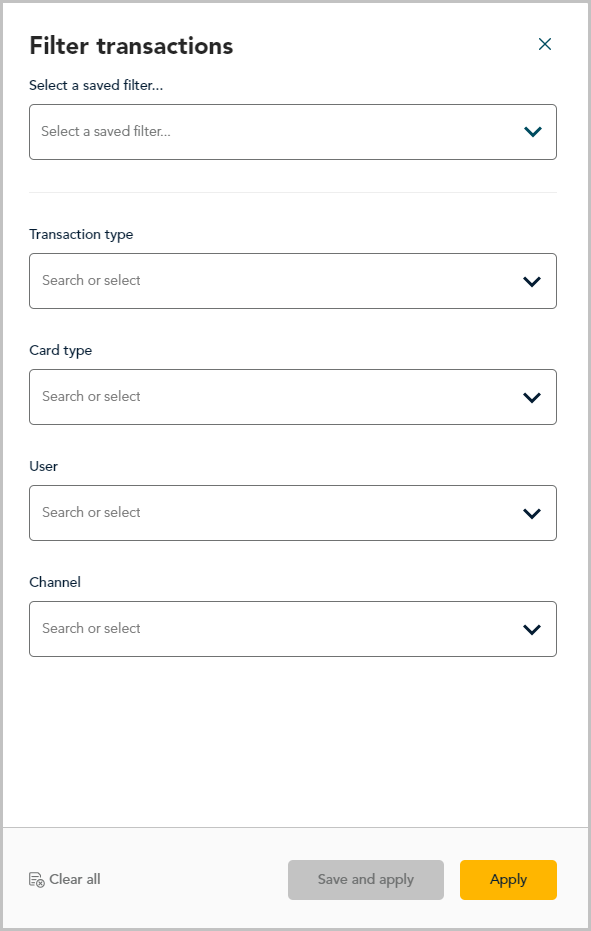
To search by transaction type:
a. Click on the "Transaction type" drop-down, and checkmark the box beside one or more transaction types (Purchase, Refund, Void, Preauthorization, Completion, and Reauthorization).
Note: To clear all selected transaction types, click on Clear.
To search by card type:
a. Click on the "Card type" drop-down, and checkmark the box beside one or more card types (e.g. Visa, Mastercard, etc.).
Note: To clear all selected card types, click on Clear.
To search by user account:
a. Click on the "User" drop-down, and checkmark the box beside one or more users (Firstname Lastname).
Note: To clear all selected users, click on Clear.
To search by channel type:
a. Click on the "Channel" drop-down, and checkmark the box beside one or more channels (Terminal, Virtual Terminal, Vault, E-commerce API, E-commerce (Moneris Checkout), Payment Request, WIX, Cash, Tap to Pay, and Go Retail POS).
Note: To clear all selected channels, click on Clear.
Click on the Apply button, and wait while the report request is processed.
When the "Reports" page refreshes, the number of active filters is indicated in the search bar (shown below).
Note: To use a different search filter, see Changing the search filters for your financial transactions report.
