 icon in the search bar (shown below).
Follow the steps below to generate a financial transactions report (up to the last 13 months) for your Moneris Go portal store by selecting your own report date range.
Note: If you want to retrieve transactions older than 13 months, please access Merchant Direct.
Initiate a financial transactions report (see Financial transactions report).
On the "Reports" page, click on the calendar icon in the search bar (shown below).

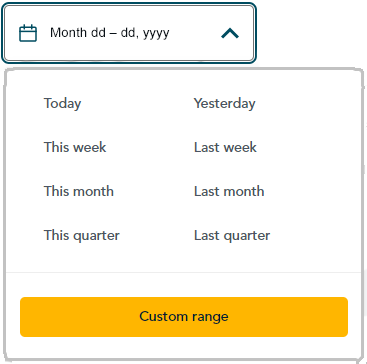
When the date range drop-down displays (shown below), click on Custom range.
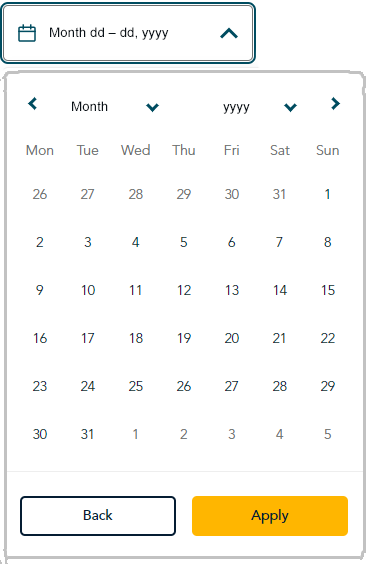
When the calendar displays (shown below), click on a start date to highlight it.
Note: To roll the calendar date backward or forward, click on the back ˂ icon or the next ˃ icon beside the month or year shown in the calendar header until you reach the desired month/year. Alternatively, you can click on the down ˅ icon beside the month and/or year, and select a specific month/year.
Click on an end date to highlight it.
Note: To roll the calendar date backward or forward, click on the back ˂ icon or the next ˃ icon beside the month or year shown in the calendar header until you reach the desired month/year. Alternatively, you can click on the down ˅ icon beside the month and/or year, and select a specific month/year.
Click on the calendar's Apply button.
Wait while the report request is processed.
Note: To use a different search filter, see Changing the search filters for your financial transactions report.