If YOU ARE a Merchant Direct user (see How to get started), follow the steps below to activate your Moneris Go portal user account.
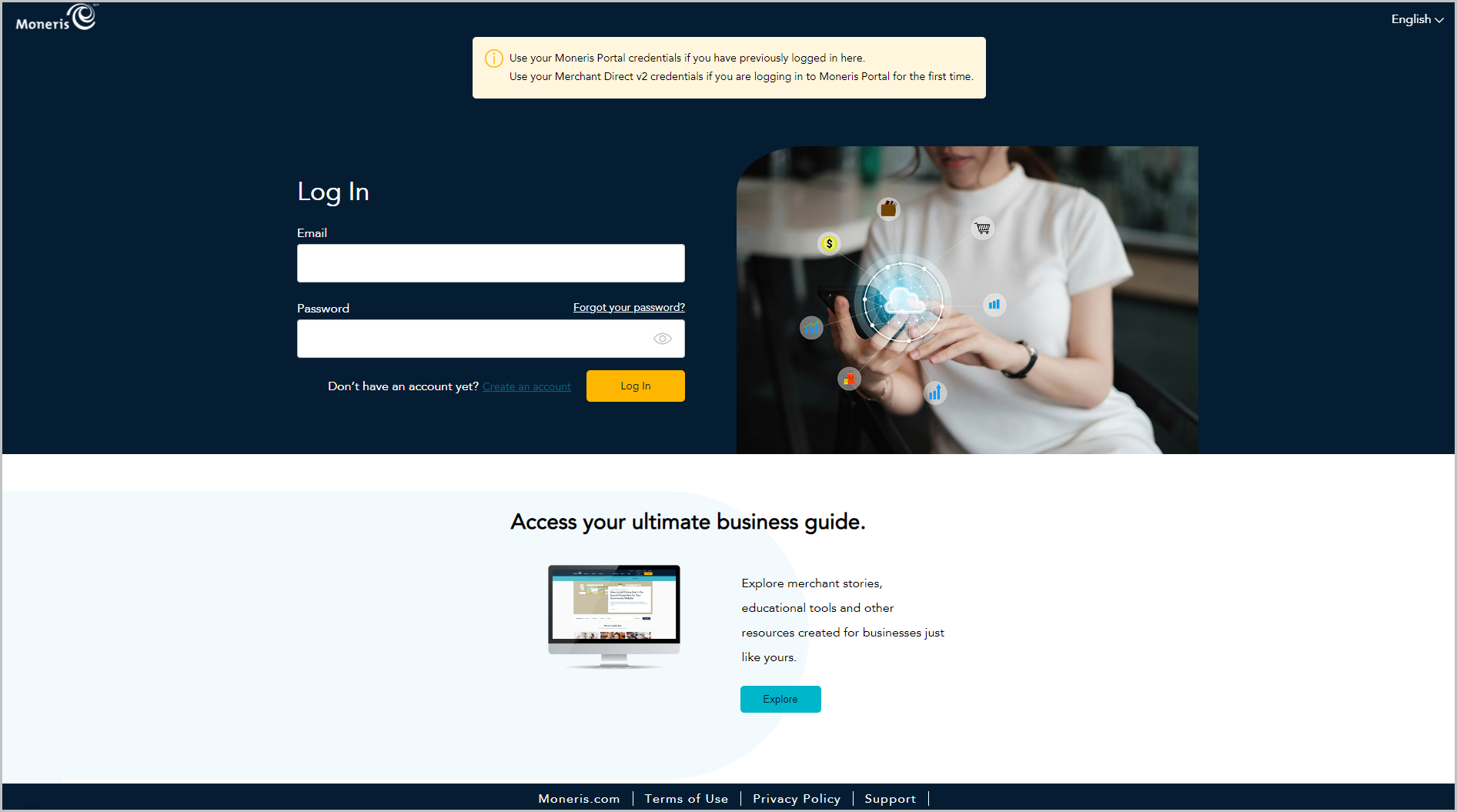
Start on the Moneris Portal "Log In" page shown below (visit https://login.moneris.com/en/login).
a. In the Email field, enter the email address that you registered when you activated your Merchant Direct account (i.e., this is the same address that you use to log into Moneris Portal or Merchant Direct).
b. In the Password field, enter the password that you use to log into Moneris Portal or Merchant Direct.
c. Click on the Log in button, and wait for a response.
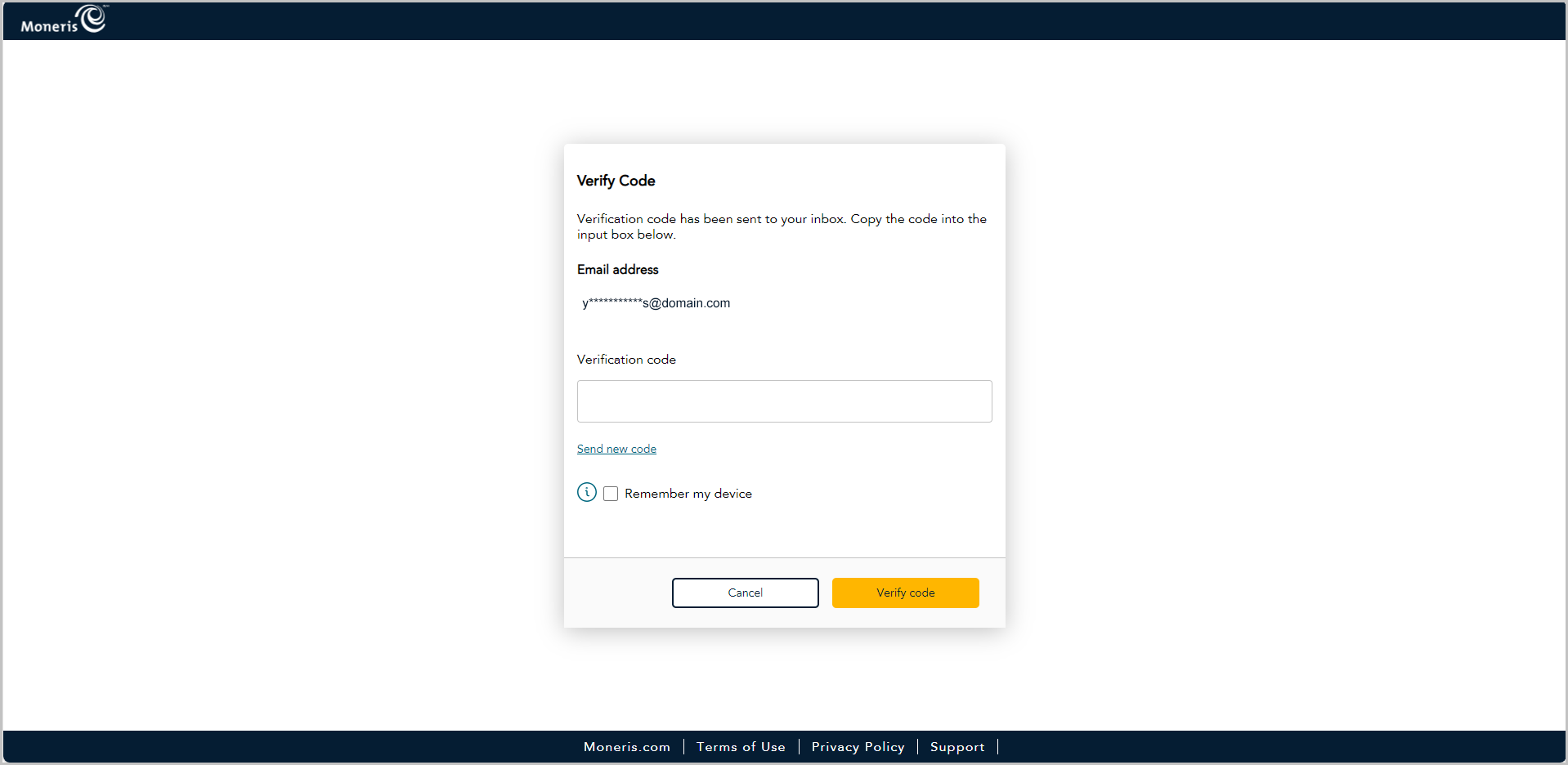
When the "Verify Code" dialog displays (shown below), it means we have sent a 6-digit authentication code to your inbox. Do the following:
Note: If you want a new code, click on Send new code.
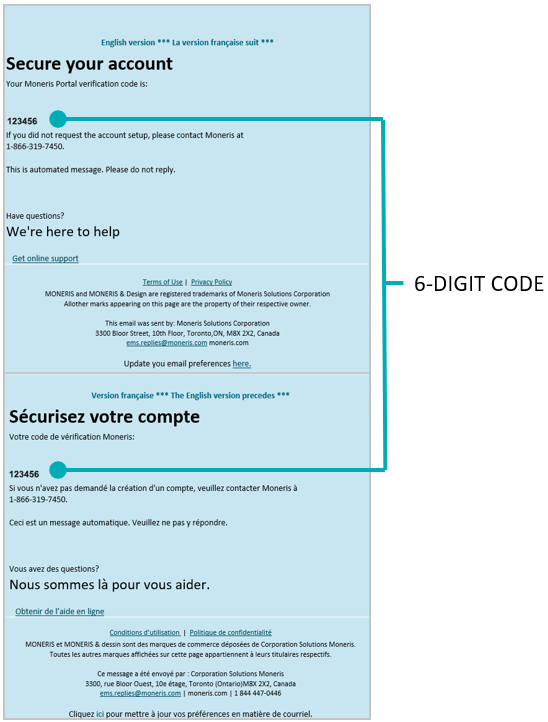
a. Open the "Moneris verification code" message in your inbox, and copy the 6-digit code (shown below) to your device's clipboard.
b. Paste the code in the "Verify Code" dialog's Verification code field.
If you do not want to be prompted to enter a verification code each time you log in from the same device and browser, checkmark the Remember my device box in the dialog.
Note: If enabled (checkmarked), this setting is effective up to 30 days so long as you log in from the same device and browser. After 30 days has elapsed, Moneris Portal will again prompt you for 2-factor authentication. When this happens, you may opt to re-enable the "Remember my device" setting.
c. Click on the Verify code button in the "Verify Code" dialog, and wait for a response.
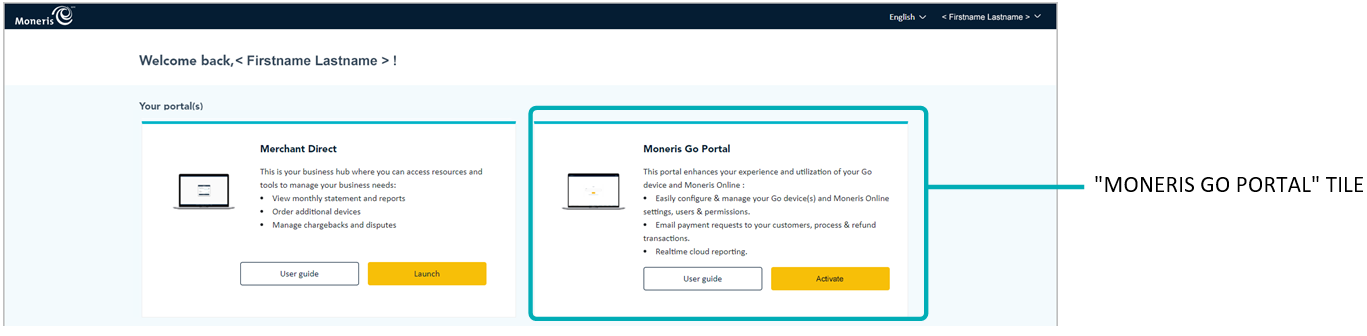
When the "Your portal(s)" page displays (shown partially below), click on the "Moneris Go Portal" tile's Activate button.
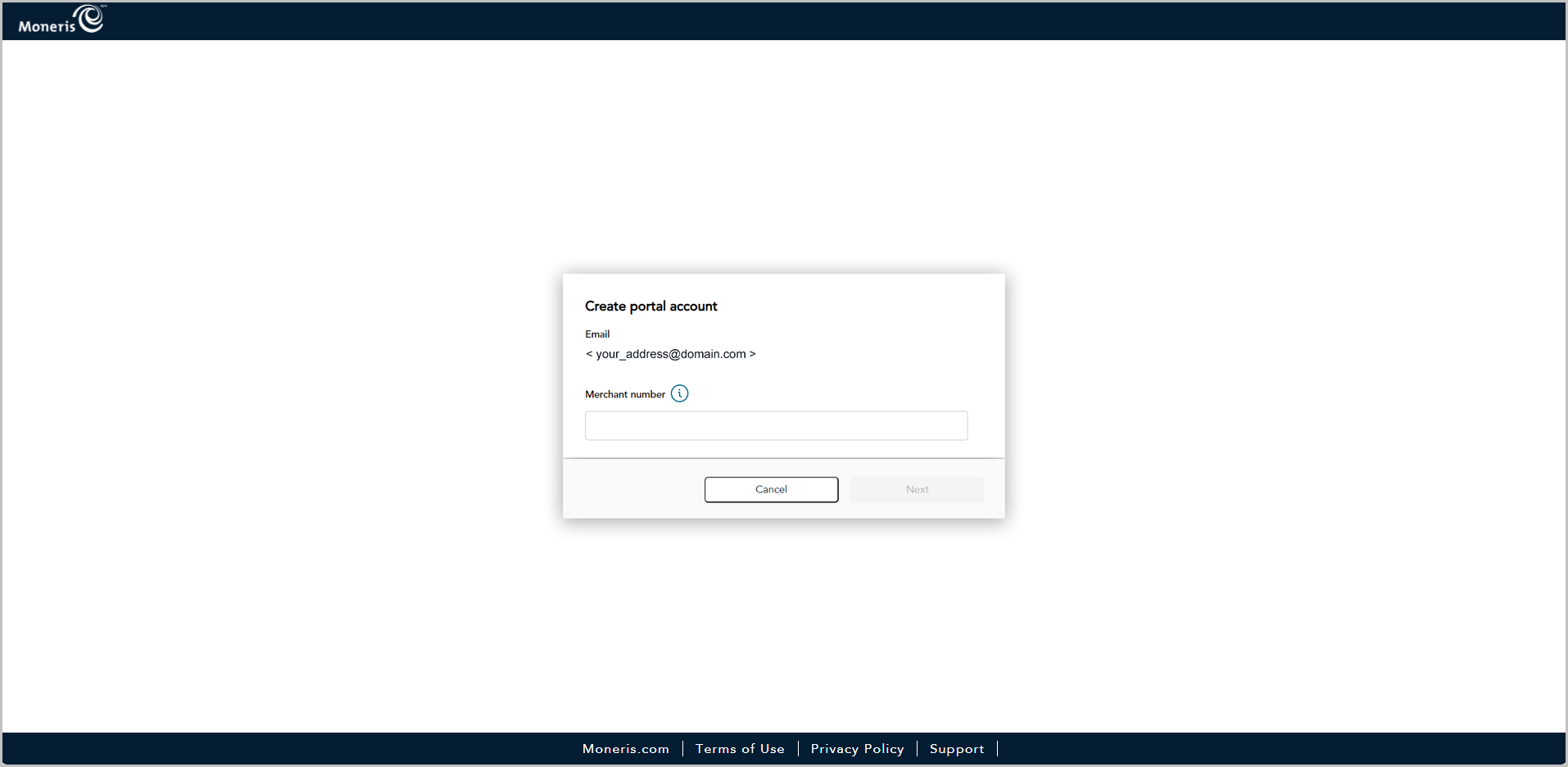
When the "Create portal account" dialog displays (shown below), enter your 13-digit merchant number in the Merchant Number field, and click on the Next button.
Note: You can locate this ID in your Moneris statement or Welcome email/letter.
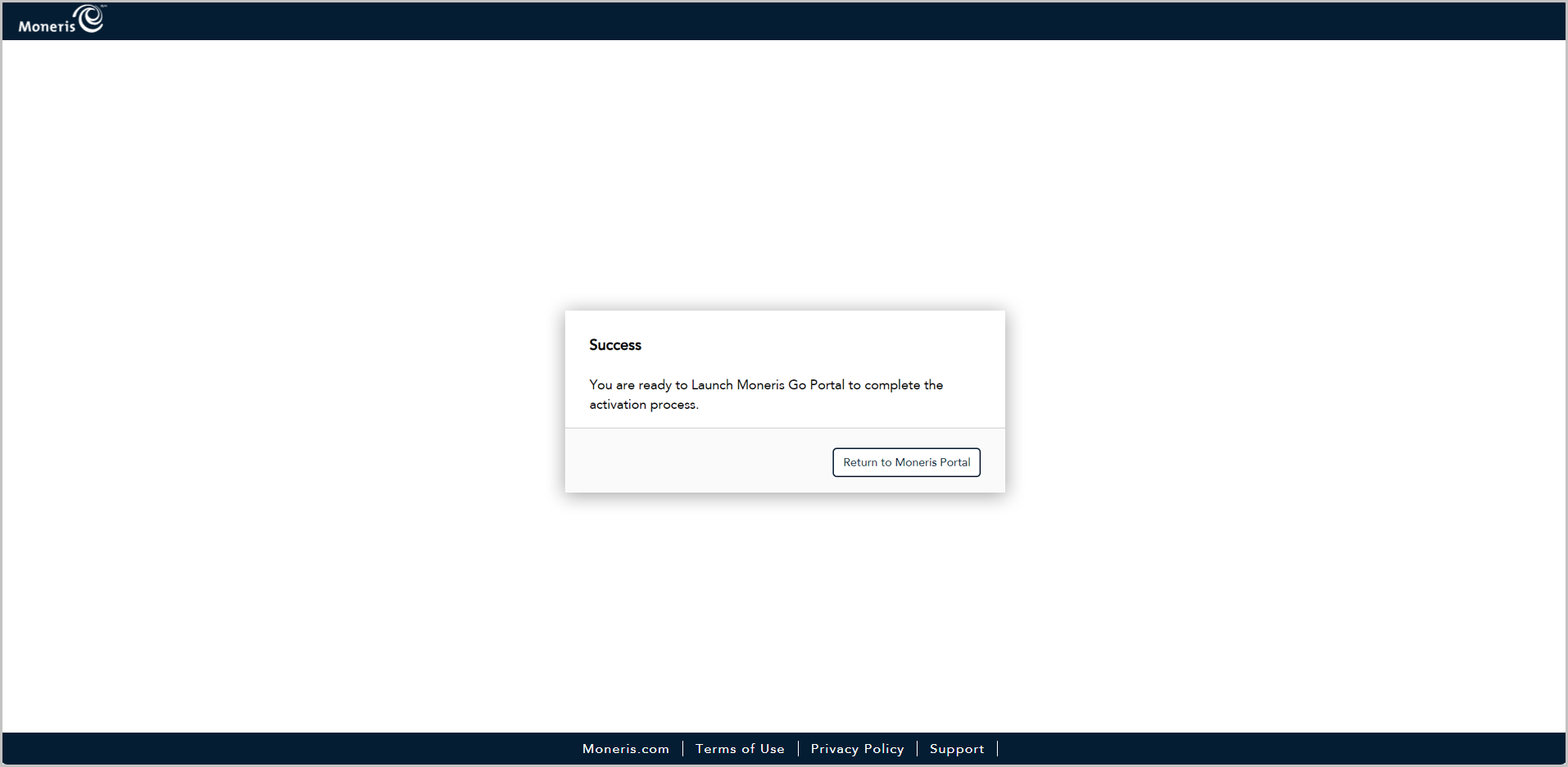
When the "Success" dialog displays (shown below), click on its Return to Moneris Portal button.
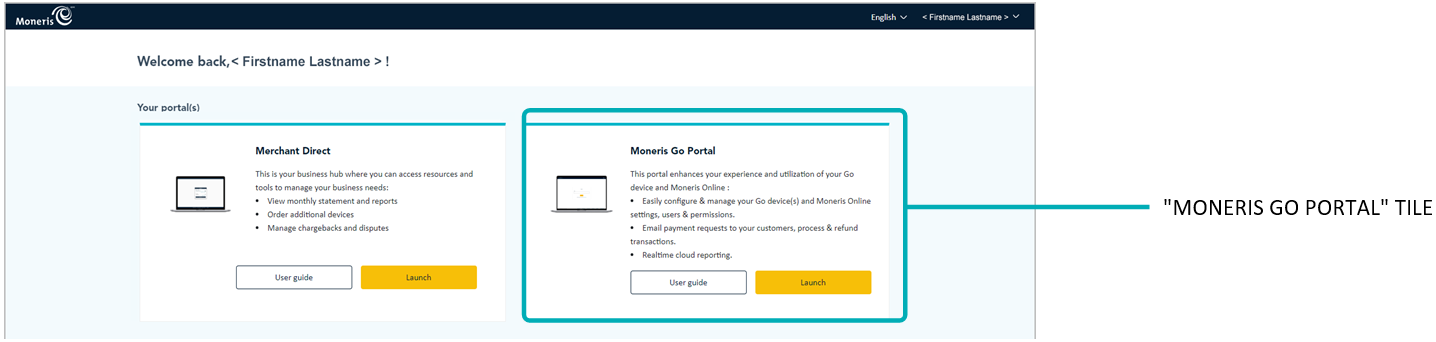
When the "Your portal(s)" page displays (shown partially below), click on the "Moneris Go Portal" tile's Launch button to start a login session in the Moneris Go portal application.
When the "Stores" page displays (shown below), continue in Adding the first store to the primary user account.
