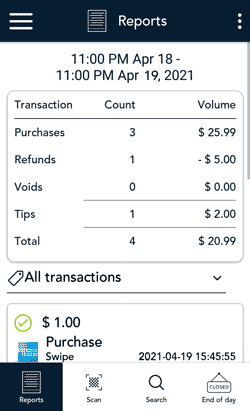
- View the End of day report on your terminal.
Note: The End of day report must be accessed before the Report reset time. You can also view (and download) the End of day report online starting at 7 a.m. the next day by logging into the Merchant Direct web portal and selecting Daily Transaction Report Menu, then Daily Batch Summary Report.- Tap the Main menu
 icon, then tap Reports.
The Reports screen appears, showing transactions totals (Daily Summary) since your last report reset time, followed by the Latest transactions. - At the bottom of the screen, tap End of day.
- Tap the Main menu
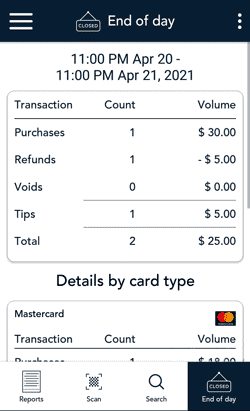
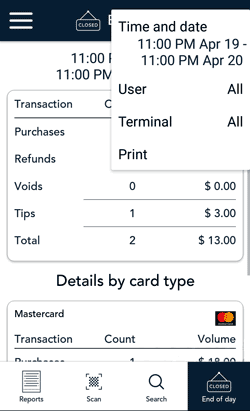
- The End of Day report appears, showing transaction totals since the last report reset time, followed by transaction totals for each card brand (Details by card type).
IMPORTANT! Your user role determines which transactions are displayed in this report. For user roles where “View other users in reports" is enabled, the user will see “All users” as the default value in the user field on the End of day screen. If not, the individual user’s name will appear in the user field, and only the transactions for that user will be displayed. Refer to User roles.
- Tap the additional options ⋮ icon to filter transaction totals by Time and date, User, and Terminal (if needed), or to print the report.
- Time and date. The default range is the current 24-hour period starting at your report reset time. To view transaction totals for a different period, select a new "Start" date/time and a new "End" date/time, then tap Go.
- User. The default value is “All” users. Tap User to see transaction totals for specific users.
- Terminal. The default value is “All” terminals. Tap Terminal to select specific terminals.
- Print. Tap the Print icon to print the report, including both the summary and details by card type.
For more instructions on using these filters, refer to Filtering transactions on the Reports and End of day screens. To exit from the options menu, tap anywhere else on the screen.
- Compare the End of day report with your receipts or other business records. If you determine there are discrepancies between the report and your records, continue to step 5. If there are no discrepancies, no further action is needed.
- Call Moneris Customer Care toll-free at 1-866-319-7450, now or the next business day, to obtain assistance with reconciliation. When listening to the options on the telephone menu, select “Financial Inquiry”.
- To exit from the End of day screen, tap the Back < icon to return to the Reports screen.
- To return to the default transaction screen, tap the Main menu icon, then tap Transactions.