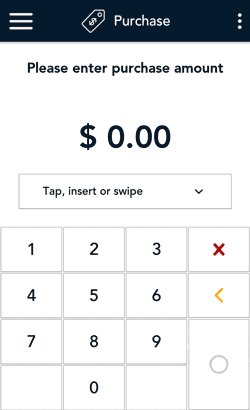
- Start at the Purchase screen.
If your terminal is at a different screen, tap the Main menu  icon, then tap Transactions.
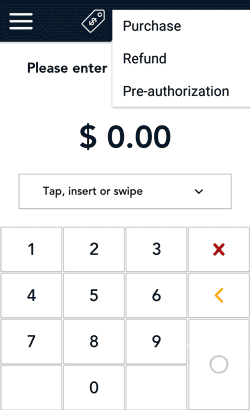
- Tap the additional options ⋮ icon and select Pre-authorization.
The title of the screen changes from Purchase to Pre-authorization.
- Tap the card entry field (Tap, insert or swipe) to display the card entry options.
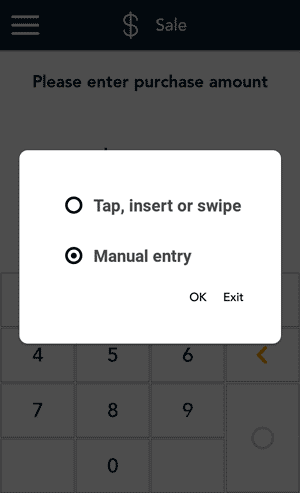
- Tap Manual entry, then tap OK.
Note: This option is available only when “Manual entry” is enabled in your user role. For more information, refer to User roles.

- Enter the amount you want to pre-authorize, then tap the OK ◯ key.
Note: The order of these initial steps is flexible. You can enter the pre-authorization amount first, or you can choose the method of card entry first. Both will work.
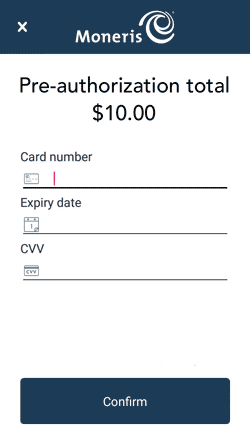
- At the manual card entry screen:
- Verify the pre-authorization amount.
- Tap each credit card field and enter the information required.
- Tap Confirm.
- Choose one of the following:
- If you did not enter a CVV, continue at step 7.
- Otherwise, skip to step 8.
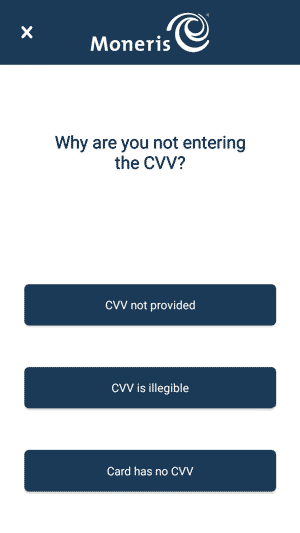
- Tap one of the available choices to indicate why you did not enter the CVV.
- The “Processing, please wait” message appears.
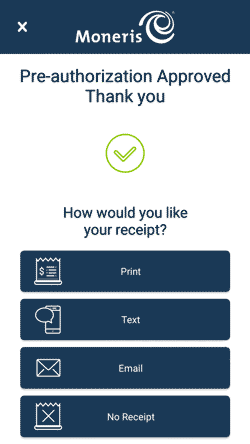
- Once the pre-authorization is approved, the “How would you like your receipt?” prompt appears, showing the available options for receiving a receipt: Print, Text, Email, and No Receipt.
- Select a receipt format on behalf of the customer, or ask them if speaking on the telephone.
- If you selected Text or Email, enter the appropriate information.
Note: You can choose which receipt options are shown. Refer to Receipt settings.
- If the customer chose to receive a paper receipt, the application prints the receipt.
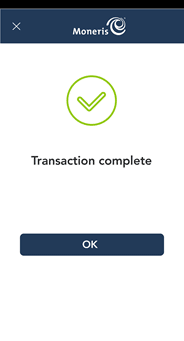
- The “Transaction Complete” prompt appears. Tap OK to return to the default transaction screen.
- If you enabled merchant receipt printing, the application prints the merchant copy of the receipt.
Store the merchant receipt for your records.
- The default transaction screen appears.
The application is ready to process your next transaction.